How do you switch keyboards on Android
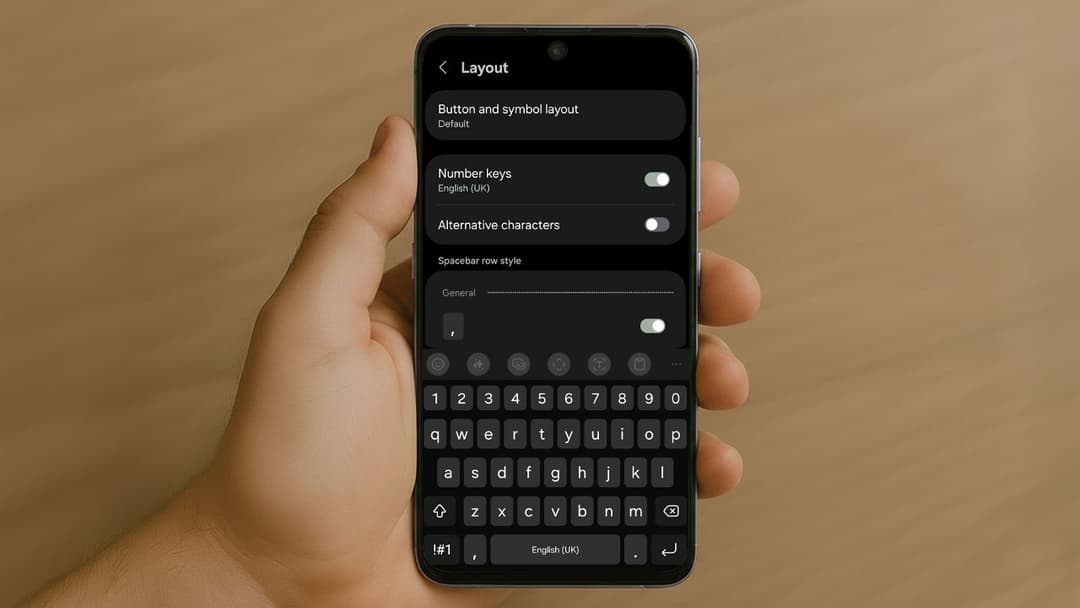
Switching keyboards on your Android phone is easier than you might think. Whether you're looking to use Gboard, SwiftKey, Grammarly Keyboard, or another third-party input method, Android gives you the flexibility to change keyboards with just a few taps. Here's everything you need to know to switch keyboards and customize your typing experience.
Why switch Android keyboards?
There are several reasons you might want to switch keyboards on your Android device:
- More features: Some keyboards offer swipe typing, voice input, or emoji suggestions.
- Different languages: Easily switch between English, Spanish, Arabic, and dozens of other languages.
- Personalization: Change themes, layouts, or keyboard size.
- Better autocorrect or predictions: Some apps specialize in smarter text suggestions or grammar checking.
Whatever your reason, switching keyboards is a quick process.
How to switch keyboards on Android: Step-by-step guide
Step 1: Download your preferred keyboard
If you haven't already installed a new keyboard, go to the Google Play Store and search for your desired keyboard app (e.g., Gboard, SwiftKey, Grammarly Keyboard).
- Open the Play Store.
- Search for the keyboard app.
- Tap Install.
Step 2: Enable the new keyboard
Once installed, you'll need to enable it in your settings:
- Open Settings.
- Tap on System (or scroll to General Management depending on your device).
- Tap Languages & input.
- Tap On-screen keyboard > Manage keyboards.
- Toggle on the keyboard you just installed.
Note: You may see a warning about enabling third-party keyboards. Make sure you trust the app before proceeding.
Step 3: Set the new keyboard as default
- Go back to Languages & input.
- Tap Current keyboard > Choose keyboards.
- Select your preferred keyboard.
Alternatively, you can:
- Open any app where you can type (like Messages or WhatsApp).
- Tap in the text field to bring up the keyboard.
- Tap the keyboard icon in the bottom-right of your navigation bar.
- Choose the keyboard you want to use.
How to switch between keyboards while typing
Once multiple keyboards are enabled, switching between them on the fly is simple:
- While typing, tap the keyboard icon (usually at the bottom-right of the screen).
- Alternatively, press and hold the space bar, then select your keyboard from the popup list.
This is especially handy if you regularly type in different languages or use a combination of text and emoji keyboards.
Popular Android keyboards to try
- Gboard (Google Keyboard): Fast, clean, and tightly integrated with Google services.
[appbox googleplay com.google.android.inputmethod.latin]
- Microsoft SwiftKey: Excellent autocorrect and multilingual support.
[appbox googleplay com.touchtype.swiftkey]
- Grammarly Keyboard: Ideal for grammar and spelling corrections.
[appbox googleplay com.grammarly.android.keyboard]
Tips for managing Android keyboards
- Update regularly to get the latest features and bug fixes.
- Manage permissions in Settings > Apps if a keyboard requests microphone or internet access.
- Reorder keyboards in the input settings if one appears before another in the switch menu.
- Remove unused keyboards from Settings to declutter your options.