How to backup WhatsApp messages
Backing up your WhatsApp messages is essential to ensure you never lose your chats, photos, videos, or documents if you switch phones or accidentally delete the app. Whether you’re using an Android or iPhone, WhatsApp offers easy ways to keep your data safe. In this guide, you’ll learn how to backup WhatsApp messages step by step, including how to restore them when needed.
Why backing up WhatsApp messages is important
Losing your WhatsApp data can be frustrating, especially if you rely on it for work or personal communication. Backing up your chats ensures you can:
- Restore conversations when changing phones
- Recover deleted messages
- Keep media files safe in the cloud
- Prevent data loss after app updates or device resets
How to backup WhatsApp messages on Android
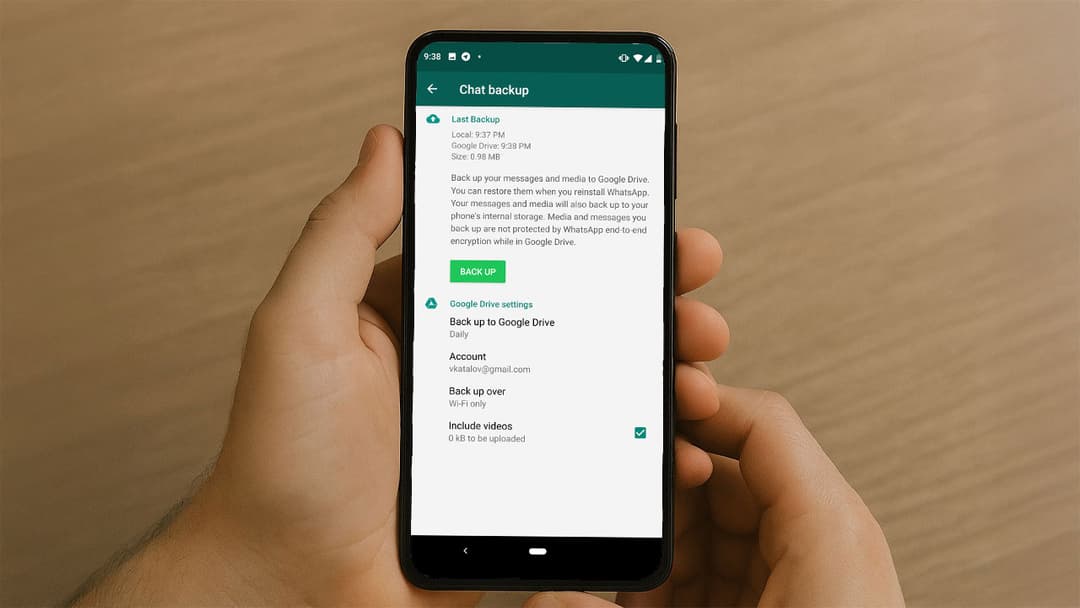
If you’re an Android user, WhatsApp backs up your chats using Google Drive. Here’s how to set it up:
Step 1: Open WhatsApp settings
- Open WhatsApp on your phone.
- Tap the three-dot menu in the top-right corner.
- Select Settings.
Step 2: Access the chat backup option
- Go to Chats.
- Tap on Chat backup.
Step 3: Configure Google Drive backup
- Tap Back up to Google Drive and choose a frequency: Daily, Weekly, Monthly, or Only when I tap "Back up".
- Select the Google account you want to use.
- Choose whether to include videos (optional, as it uses more storage).
- Tap Back Up to start saving your chats to Google Drive.
How to backup WhatsApp messages on iPhone
For iPhone users, WhatsApp uses iCloud to store backups. Follow these steps:
Step 1: Enable iCloud Drive
- Go to Settings on your iPhone.
- Tap your Apple ID at the top.
- Select iCloud and make sure iCloud Drive is turned on.
Step 2: Backup chats on WhatsApp
- Open WhatsApp.
- Go to Settings > Chats > Chat Backup.
- Tap Back Up Now to manually save your chats.
- To enable automatic backups, turn on Auto Backup and choose the backup frequency.
How to restore WhatsApp messages from a backup
If you’re moving to a new phone or reinstalling WhatsApp, restoring your chats is easy:
- On Android: After installing WhatsApp, verify your phone number and tap Restore when prompted.
- On iPhone: Reinstall WhatsApp, verify your number, and select Restore Chat History from iCloud.
Tips for successful WhatsApp backups
- Use Wi-Fi: Backups can be large, so avoid using mobile data.
- Check storage space: Ensure enough free space in Google Drive or iCloud.
- Keep your account linked: Make sure you’re using the same phone number and email ID associated with the backup.