How to download a Youtube video to your phone
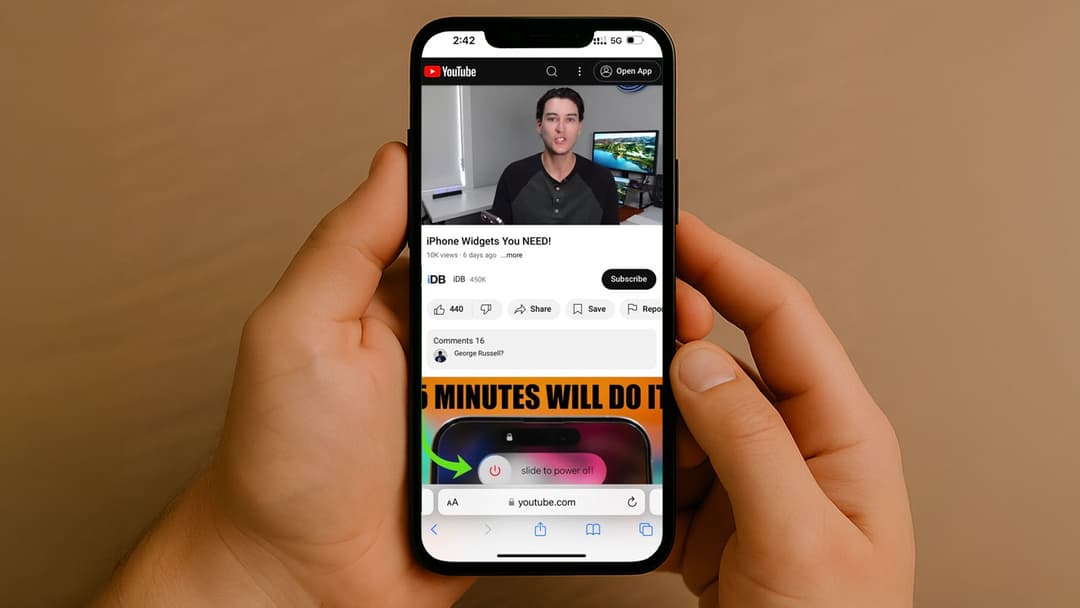
Want to watch your favorite YouTube videos offline without burning through your data? Whether you're using an Android or iPhone, there are several safe and simple ways to download YouTube videos directly to your phone. In this guide, we’ll walk you through step-by-step methods, from using the official YouTube app to exploring alternative options.
Can you legally download YouTube videos?
Before we dive into the steps, it's important to understand that downloading YouTube videos without permission may violate YouTube’s terms of service. However, YouTube offers a built-in feature called YouTube Premium, which allows you to legally download videos for offline viewing. We'll cover that first, then discuss alternative solutions.
How to download YouTube videos using the official app
If you want a safe and legal method, using the YouTube app is the best choice.
Steps to download YouTube videos on Android or iPhone
- Open the YouTube app on your phone.
- Find the video you want to download.
- Tap the Download button below the video player.
- Choose the desired video quality (360p, 720p, 1080p, etc.).
- Once downloaded, you can watch the video offline anytime by going to Library > Downloads.
Tip: This feature is available only if you have a YouTube Premium subscription.
How to download YouTube videos without YouTube Premium
If you don’t have YouTube Premium, there are third-party tools and apps that can help. While you should use them responsibly, here are two popular options:
1. Using a mobile browser
Some websites let you download videos without installing anything.
Steps:
- Open YouTube in your phone’s browser.
- Copy the video URL from the address bar or the Share button.
- Visit a trusted website like yt1s.com or savefrom.net.
- Paste the URL into the provided box.
- Select your preferred format (MP4, MP3, etc.) and quality.
- Tap Download and save it to your phone.
2. Using third-party apps (Android only)
Some Android apps are designed to download YouTube videos directly, but they are not available on the Play Store. Popular options include NewPipe or VidMate.
Steps:
- Download and install the app from its official website.
- Open the app and search for your video.
- Tap Download, choose the format and quality, and save it to your device.
Note: Be cautious when downloading APK files — always use trusted sources.
How to download YouTube videos to your iPhone
Apple devices are more restrictive, but here’s a safe method:
- Install the app Documents by Readdle from the App Store.
- Open the app and tap the built-in browser icon.
- Go to a website like savefrom.net.
- Paste the YouTube video link and select the quality.
- Tap Download and save the file.
- You can find your video in the Downloads folder within the app.
Best tips for downloading YouTube videos
- Always use trusted sources to avoid malware.
- Choose a lower resolution if you need to save storage space.
- For long-term access, store videos in cloud storage or transfer them to your computer.
- Remember that YouTube Premium offers the safest and most reliable offline experience.