How to schedule a message on WhatsApp
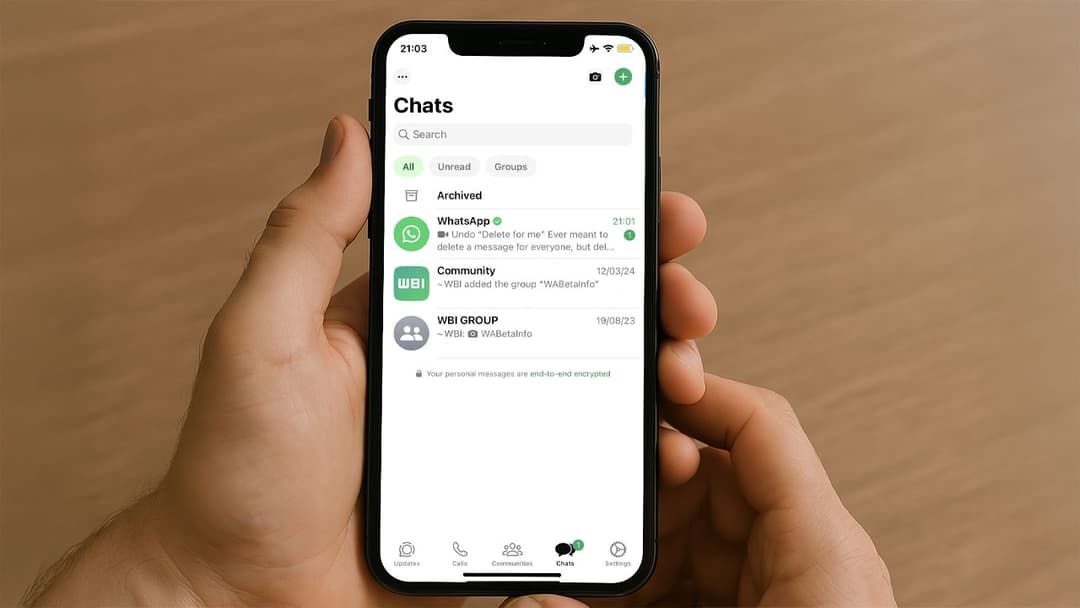
Ever needed to send a WhatsApp message at a specific time but feared you'd forget or wouldn't be available? Scheduling a WhatsApp message is the perfect solution to ensure your messages are sent exactly when needed—whether for birthday wishes, reminders, or important updates.
This guide will walk you through how to schedule messages on WhatsApp easily and efficiently.
Can you schedule messages directly in WhatsApp?
Unfortunately, WhatsApp doesn't currently offer a built-in scheduling feature. But don't worry! There are effective third-party apps and tools you can use to automate message scheduling on WhatsApp.
Here’s how you can do it:
How to schedule WhatsApp messages on Android
Step 1: Download a WhatsApp scheduling app
Head to Google Play Store and search for a reliable scheduling app such as "SKEDit Scheduling App" or "WhatsAuto."
Step 2: Set up the scheduling app
- Open the downloaded app and grant the necessary permissions for it to function properly.
- Select WhatsApp from the list of supported apps.
Step 3: Schedule your WhatsApp message
- Tap "Schedule" or the plus (+) button.
- Select the contact or group you want to send a message to.
- Write your message and select the date and time you want it to be sent.
- Confirm by hitting "Schedule."
Your message is now scheduled!
How to schedule WhatsApp messages on iPhone
Due to stricter privacy restrictions on iOS, scheduling WhatsApp messages requires different approaches, typically using Siri Shortcuts.
Step 1: Download the Shortcuts app
Download and open Apple's official "Shortcuts" app from the App Store.
Step 2: Create a new shortcut
- Open Shortcuts and tap the "+" icon.
- Search for "WhatsApp" and choose "Send Message via WhatsApp."
- Type your message and select your contact.
Step 3: Schedule your shortcut automation
- Go to the Automation tab and tap on "Create Personal Automation."
- Set the desired date and time for your message.
- Select the shortcut you've just created.
- Ensure you enable "Ask Before Running" if you want to confirm manually or disable it to automate fully.
That's it! Your message is scheduled to send at the chosen time.
Tips for using WhatsApp message scheduling effectively
- Double-check the scheduled time and date to avoid mistakes.
- Use this feature to remember birthdays, anniversaries, and important meetings.
- Always review privacy and security settings when using third-party apps.