How to connect phone to printer
Connecting your smartphone to a printer is easier than ever, thanks to advancements in wireless and mobile printing technology. Whether you need to print documents or cherished photos, a direct connection from your phone eliminates the hassle of transferring files to a computer first. In this guide, you’ll learn how to connect your phone to a printer using Wi-Fi, Bluetooth, or third-party printing apps. Follow the steps below and get ready to enjoy the convenience of mobile printing whenever you need it.
Why print from your phone?
Printing directly from your phone has become increasingly popular for a few key reasons:
- Convenience: Skip the extra steps of transferring files to a computer.
- Speed: Send documents, images, or emails to your printer in seconds.
- On-the-go productivity: Complete important tasks even when you’re away from your desk.
These benefits make mobile printing a top choice for students, professionals, and busy individuals who value quick results without sacrificing quality.
Preparations before connecting
Before diving into the step-by-step instructions, make sure you have the following:
- Smartphone: iPhone or Android device with up-to-date software.
- Printer: A wireless printer compatible with mobile printing (Wi-Fi or Bluetooth).
- Network: Stable Wi-Fi connection, if you plan to use a Wi-Fi-based printer.
- Printing app (optional but recommended): Manufacturer-specific apps like HP Smart, Canon PRINT, or Epson iPrint.
How to connect phone to printer via Wi-Fi
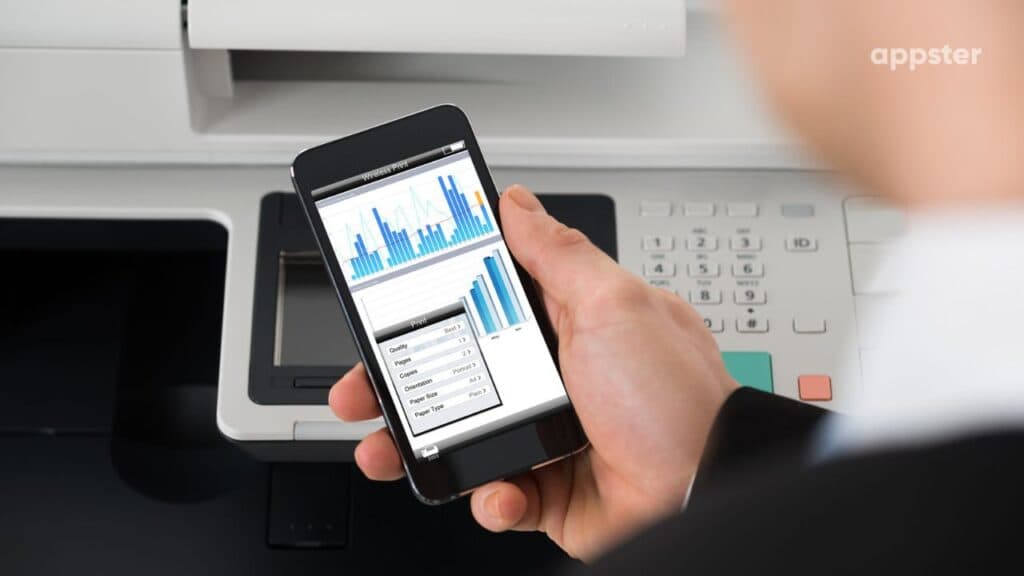
Wi-Fi is one of the most popular methods to connect your phone to a printer. It offers a quick and seamless printing experience, especially if both devices share the same network. Follow these steps:
1. Ensure both devices are on the same network
- Turn on your printer and connect it to your Wi-Fi network.
- Confirm your phone is connected to the same network.
2. Open the document or photo you want to print
- Launch the file or image on your phone (e.g., using a gallery or document viewer).
- Look for the “Share” or “Options” button.
3. Select the print option
- Tap the share icon (often shaped like an arrow or three dots).
- Choose “Print” from the menu.
- On some devices, you might need to scroll through the options to find “Print.”
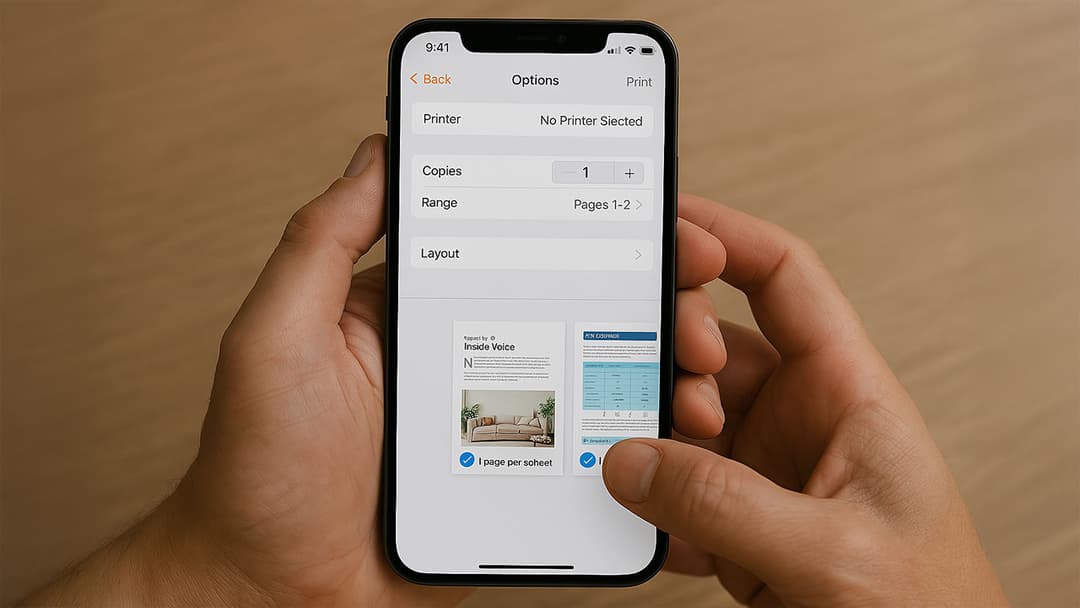
4. Choose your printer
- Select the printer name from the list of available printers.
- Adjust settings like color mode, number of copies, and page size, if necessary.
5. Hit print
- Tap “Print” and wait for the job to process.
- Your document or photo should start printing immediately if everything is set up correctly.
How to connect phone to printer via Bluetooth
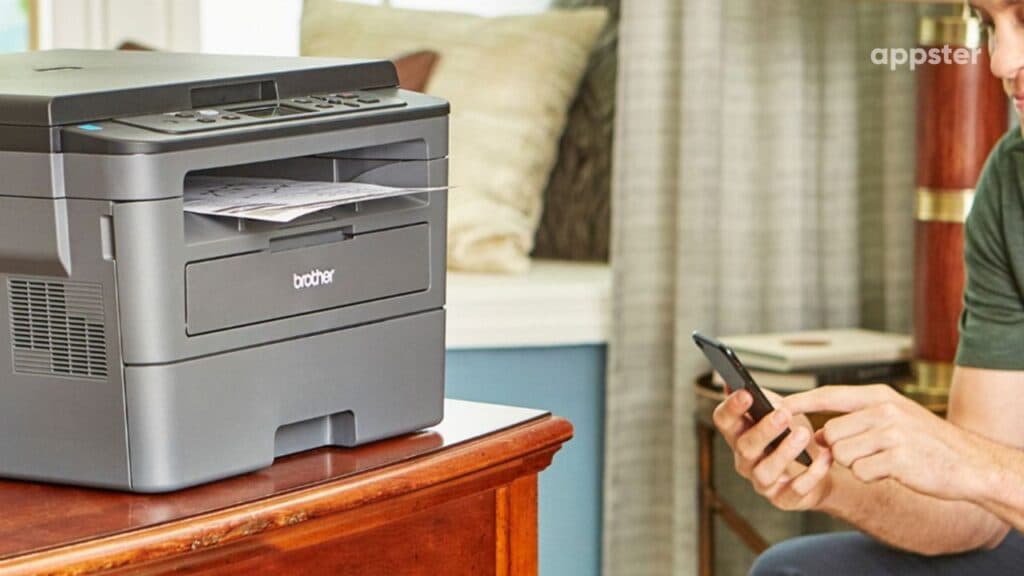
Not all printers support Bluetooth, but if yours does, it can be a reliable alternative to Wi-Fi. Here’s how:
1. Enable bluetooth on both devices
- Go to your phone’s “Settings” and turn on Bluetooth.
- Activate Bluetooth pairing mode on your printer (check the printer manual for instructions).
2. Pair your phone and printer
- On your smartphone, locate the printer in the list of available Bluetooth devices.
- Tap your printer’s name to initiate pairing.
- Enter any required PIN or passkey (often “0000” or “1234”).
3. Print as usual
- Once paired, open the document or photo you want to print.
- Select “Share” → “Print.”
- Choose your Bluetooth printer, configure options, and press “Print.”
Using manufacturer-specific apps
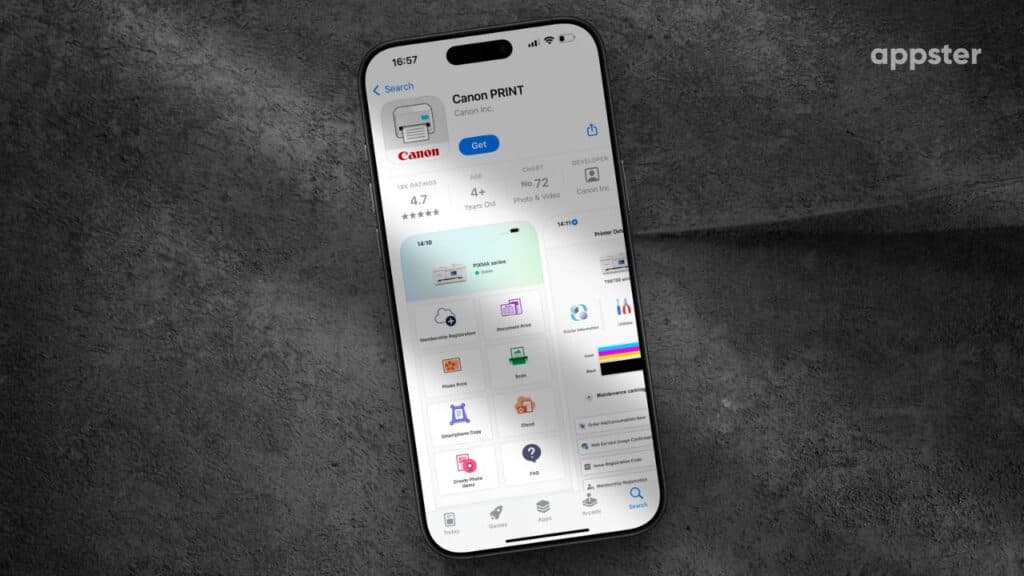
Many printer brands offer their own mobile apps designed to simplify the printing process. Examples include:
- HP Smart
- Canon PRINT
- Epson iPrint
1. Download and install the app
- Visit the App Store (iPhone) or Google Play Store (Android) and search for your printer brand’s official app.
- Download and install it on your phone.
2. Follow on-screen instructions
- Launch the app and follow the guided setup to connect your printer.
- Sign in or create an account if required.
3. Print with ease
- Access files directly from the app or your phone’s storage.
- Choose print settings like paper size, quality, and layout.
- Tap “Print” and let the app handle the rest.
Troubleshooting common issues
Even with clear instructions, connecting your phone to a printer can sometimes pose challenges. Here are a few tips to resolve common problems:
- Update firmware: Keep your printer’s firmware updated.
- Restart devices: Power cycle your phone and printer to refresh their connections.
- Check compatibility: Verify that your printer supports mobile printing and that your phone meets app requirements.
- Reinstall printing app: If you’re experiencing persistent issues, uninstall and reinstall the printing app.
Tips for optimal print quality
- Use high-resolution files: Printing low-quality images can result in blurry or pixelated prints.
- Regular printer maintenance: Clean the print heads and check ink levels to avoid streaks or fading.
- Paper selection: For photos, opt for glossy or premium photo paper. For documents, standard paper works well.