How to send photos from iPhone to Android
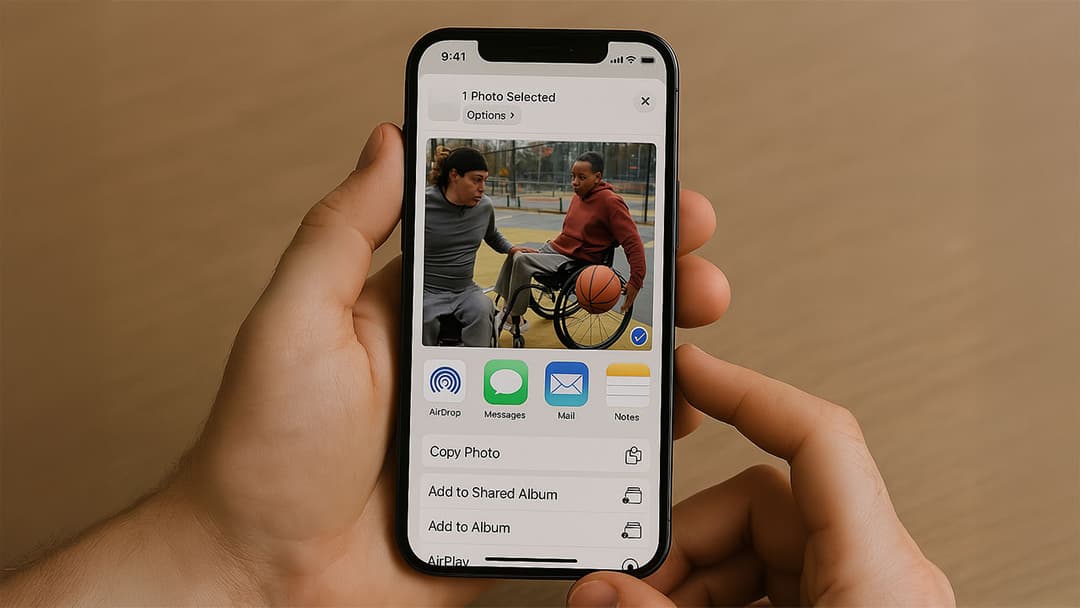
Transferring photos from an iPhone to an Android device can seem challenging, especially if you’re new to switching between different operating systems. Thankfully, there are several easy methods to help you share pictures seamlessly. In this guide, you’ll discover step-by-step instructions to ensure your photos move quickly and securely from iOS to Android.
Why transferring photos from iPhone to Android matters
When you switch from an iPhone to an Android phone—or simply need to share pictures with someone who uses Android—knowing how to transfer photos effectively saves time and prevents unnecessary frustration. Whether you’re dealing with a few snapshots or hundreds of images, the options below let you pick a method that best suits your needs.
Method 1: Transfer via cloud storage
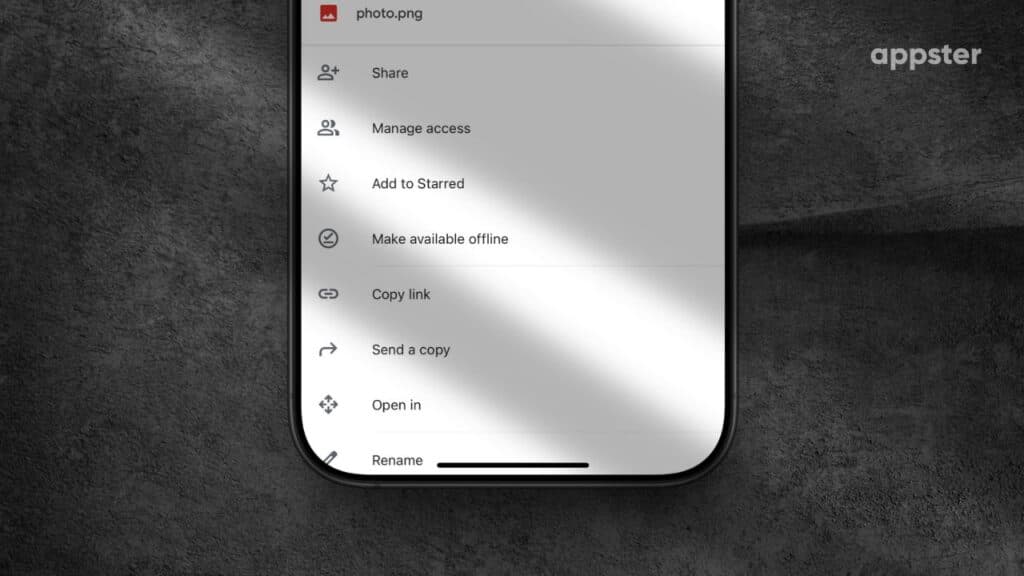
Using cloud storage is a popular way to send photos because it’s fast, reliable, and doesn’t require cables or extra apps on every device.
Step-by-step instructions
- Choose a cloud service: Download a reputable cloud service app on your iPhone. Popular choices include Google Drive, Dropbox, or OneDrive.
- Upload your photos: Open the app and sign in. Upload your selected pictures from your iPhone’s Camera Roll to the cloud.
- Generate a shareable link: Most cloud storage apps offer a “Share” or “Copy link” option. Tap it to create a shareable URL.
- Access on Android: Open the same cloud storage app on the Android device (or share the link directly with the Android user). Download the photos to the Android phone.
Pro tip: Using Google Drive or Google Photos can be especially handy for Android devices, as they integrate seamlessly with Google’s services.
Method 2: Use messaging apps
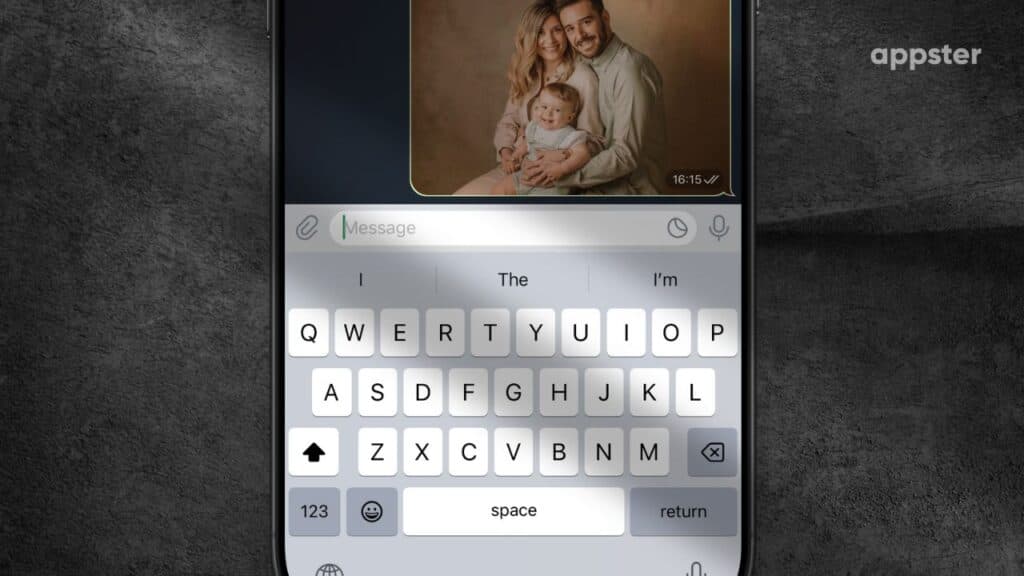
Messaging apps like WhatsApp, Telegram, or Facebook Messenger can handle quick transfers of a few photos.
Step-by-step instructions
- Open your messaging app: Install the same messaging app on both the iPhone and the Android device.
- Select photos to send: On your iPhone, open a conversation with the Android user. Tap the attachment or photo icon to choose which pictures to send.
- Send the photos: Depending on your internet connection, it may take a few moments for the pictures to upload.
- Download on Android: On the Android device, open the chat and download each photo. They’ll typically be stored in a folder for that messaging app.
Note: Some messaging apps compress images. If you need full-resolution photos, consider a different method like email or cloud storage.
Method 3: Email attachments
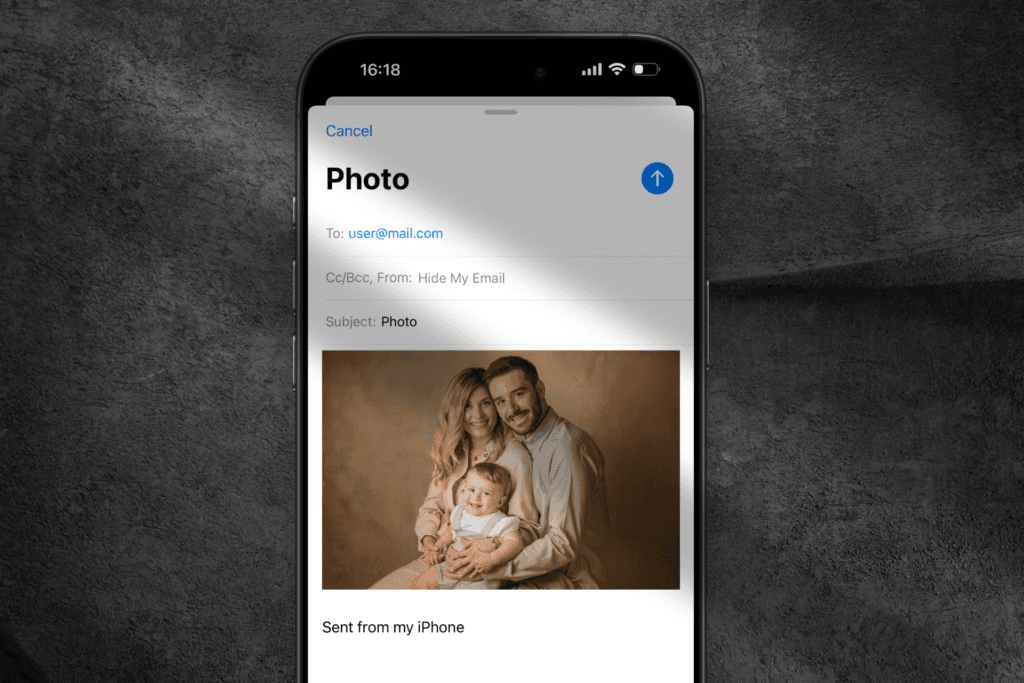
Email is a classic way to transfer photos—ideal if you’re sending just a handful of pictures.
Step-by-step instructions
- Open your email app: On your iPhone, launch the Mail app or your preferred email client.
- Compose a new message: Add the Android user’s email address as the recipient.
- Attach photos: Tap the attachment icon and select the images you want to share. Some email services limit the size of attachments, so keep an eye on the total file size.
- Send and receive: Once you send the email, open the email on the Android device. Download the attached photos to save them locally.
Quick tip: Compressing photos (by creating a .zip file) can sometimes bypass email size limitations, but you’ll need a file management app to do this.
Method 4: Direct transfer using a computer
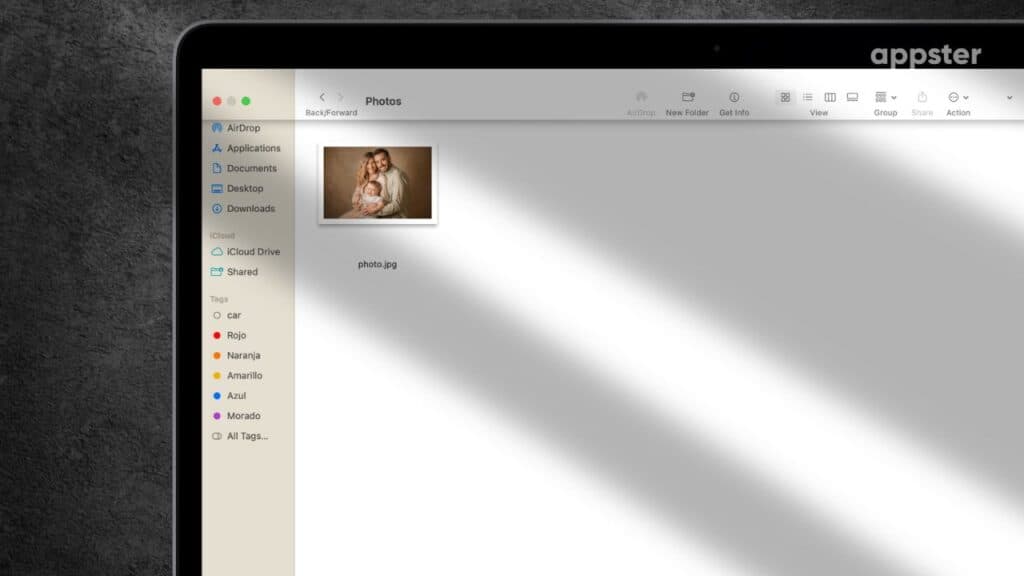
If you prefer transferring all your photos at once without worrying about file compression or cloud storage limits, you can use your computer as an intermediary.
Step-by-step instructions
- Connect your iPhone to your computer: Use the appropriate USB cable. On your computer, open the Photos application (Mac) or File Explorer (Windows) to locate your iPhone’s photo folder.
- Copy your photos: Drag and drop or copy and paste the desired images to a folder on your computer.
- Connect your Android device: Next, connect your Android phone using a USB cable and ensure it’s set to “File Transfer” mode.
- Transfer photos to Android: Locate the folder where you saved the images. Copy them from your computer and paste them into the Android’s “Pictures” or “DCIM” folder.
Bonus tip: Use a quality USB cable and ensure you have the necessary drivers if you’re on a Windows PC. This helps minimize connection or transfer speed issues.
Method 5: AirDrop alternatives
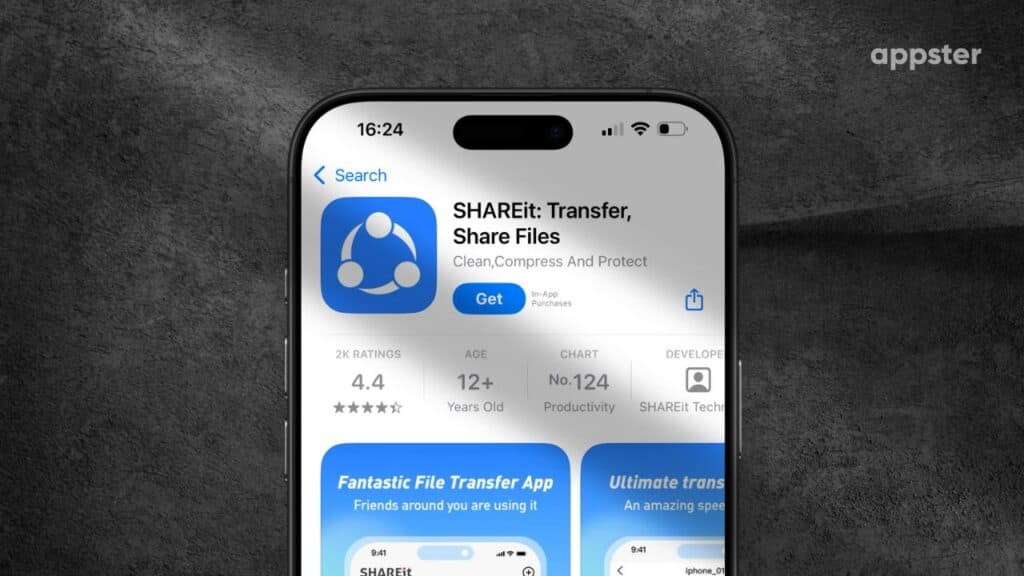
While AirDrop is exclusive to Apple devices, there are third-party apps that function similarly and can help you move pictures between iPhone and Android quickly.
Examples of third-party transfer apps
- Snapdrop: Operates on a local Wi-Fi network, allowing you to transfer files between devices using just a web browser.
- SHAREit: A dedicated app that can send large files wirelessly between iOS and Android.
- Zapya: Another convenient cross-platform file-sharing tool.
Step-by-step instructions
- Install the app on both devices: Make sure the same file-sharing app is installed on your iPhone and Android phone.
- Connect to the same Wi-Fi network: These apps typically require both devices to be on the same local network.
- Select files to share: From the iPhone, choose which photos you want to send.
- Accept transfer on Android: On the Android device, approve the incoming transfer request and wait for the files to arrive.
Best practices for seamless photo sharing
- Keep devices updated: Ensure both the iPhone and Android phone have the latest OS updates to avoid compatibility issues.
- Check available storage: Running out of cloud or local storage can interrupt transfers, so clear space if needed.
- Use reliable Wi-Fi: Strong connectivity speeds up the transfer process and reduces the chance of failure.
- Stay organized: Label folders and albums so you can find important photos quickly on either device.