How to unhide apps on Android
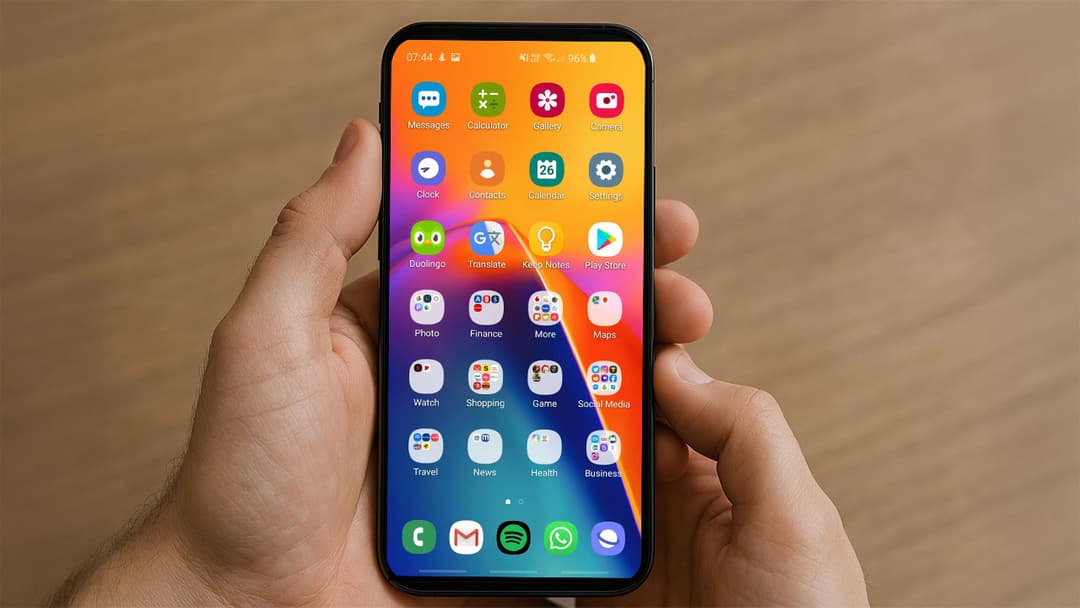
Whether you intentionally hid an app and forgot how to bring it back or accidentally hid one and now need it urgently, unhiding apps on Android is straightforward. Here's a quick and easy guide to help you find and unhide any hidden app on your Android device.
Why apps get hidden on Android
There are many reasons users choose to hide apps. It might be to declutter the home screen, protect privacy, or simply prevent accidental use. However, when the need arises to access these hidden apps again, knowing how to restore them quickly is crucial.
Step-by-step guide to unhide apps on Android
Follow these clear, easy-to-follow instructions to quickly unhide your apps:
Step 1: Access your device settings
- Swipe down from the top of your screen and tap the gear icon to open Settings.
- Alternatively, open the app drawer and tap Settings.
Step 2: Navigate to "Apps"
- Scroll down and tap on the Apps or Applications option.
- Depending on your Android device and version, this might also be labeled as App management.
Step 3: Select "See all apps"
- Within the Apps section, tap See all apps or Manage apps.
- This will display a list of all apps installed on your device, including those that are hidden.
Step 4: Choose the hidden app
- Scroll or use the search bar to find the hidden app you wish to unhide.
- Tap on the app to open its detailed settings page.
Step 5: Enable the app
- If the app was disabled or hidden intentionally, you’ll see an Enable or Turn on option. Tap it.
- If your app is hidden through a custom launcher, you'll need to access the launcher's settings specifically to unhide apps.
Unhiding apps on popular Android launchers
Different Android launchers might have unique methods to unhide apps. Here’s a quick look at the most common ones:
Samsung One UI Launcher
- Pinch the home screen to open Home Screen Settings.
- Tap on Hide apps.
- Deselect the apps you want to unhide and tap Done.
Nova Launcher
- Long-press the home screen and tap Settings.
- Tap App drawer > Hide apps.
- Uncheck the hidden apps and exit settings.
MIUI Launcher
- Pinch the home screen with two fingers.
- Tap Settings and then select Hidden Apps.
- Deselect the apps to unhide them.
Common troubleshooting tips
If you're still struggling to find a hidden app:
- Restart your Android device and try again.
- Ensure your launcher settings don't have parental controls or restrictions enabled.
- Update your launcher or device software to the latest version.