How to empty trash on Android
Running out of storage on your phone can feel like trying to squeeze another book onto an overflowing shelf. One quick way to reclaim space is to empty the trash (also called the bin or recycle bin) on Android. Unlike Windows or macOS, Android doesn’t have a single system‑wide trash folder—each app keeps its own. Below, you’ll find a complete, easy‑to‑follow guide to purging those hidden bins and freeing up precious megabytes (or gigabytes!) on any Android device.
Why you should empty trash on Android
- Free up storage instantly – Deleted photos, videos, and documents continue to occupy space until they’re removed from the trash.
- Speed up your phone – A lighter storage load can help apps open faster and reduce lag.
- Protect your privacy – Permanently deleting sensitive files prevents accidental recovery by others.
- Avoid cloud overages – Google Photos and Drive count trashed items against your quota until they’re erased.
Step‑by‑step guide to empty every trash bin
Below are the most common places where deleted files hide. Work through the list in order, and you’ll clear virtually all lingering junk.
1. Clear Google Photos bin (all Android phones)
- Open Google Photos and tap Library at the bottom.
- Tap Bin (or Trash).
- Press Select → Delete → Move to bin.
- Finally, open the ⋮ menu in the top‑right and choose Empty bin → Delete permanently.
Tip: Items stay in Google Photos bin for 60 days, counting against both device and Google Drive storage quotas.
2. Empty Samsung Galaxy recycle bin (Gallery)
- Open the Gallery app.
- Tap the ⋯ menu and choose Recycle bin.
- Hit Empty or long‑press individual items ➜ Delete.
- Confirm with Delete permanently.
3. Remove files in My Files trash (Samsung only)
- Open My Files.
- Tap the ☰ (hamburger) menu ➜ Trash.
- Touch ⋮ ➜ Empty.
- Confirm.
4. Empty Files by Google trash (Pixel and most phones)
- Launch Files by Google.
- Tap Clean ➜ Trash.
- Select All items ➜ Delete ➜ Delete permanently.
5. Clear Gmail bin
- Open Gmail.
- Tap ☰ ➜ Bin.
- Tap Empty bin now at the top.
- Confirm.
6. Delete WhatsApp media permanently
- In WhatsApp, tap ⋮ ➜ Settings ➜ Storage and data ➜ Manage storage.
- Select large files or chats ➜ Delete.
- Tap Delete for me to wipe locally stored media.
7. Check other cloud and note apps
Apps like OneDrive, Dropbox, Evernote, and Keep all have their own trash or recently deleted folders. Open each app and look for Deleted, Bin, or Trash under settings to purge files.
Pro tips to keep storage tidy
- Use automatic cleanup tools – On Samsung, enable Device care ➜ Storage ➜ Auto delete unnecessary data. On Pixels, turn on Smart Storage to auto‑remove backed‑up photos every 60 days.
- Review downloads weekly – The Downloads folder is often the biggest culprit. Delete installs and PDFs you no longer need.
- Stream, don’t store – Switch Spotify, Netflix, and YouTube Music to streaming mode when possible.
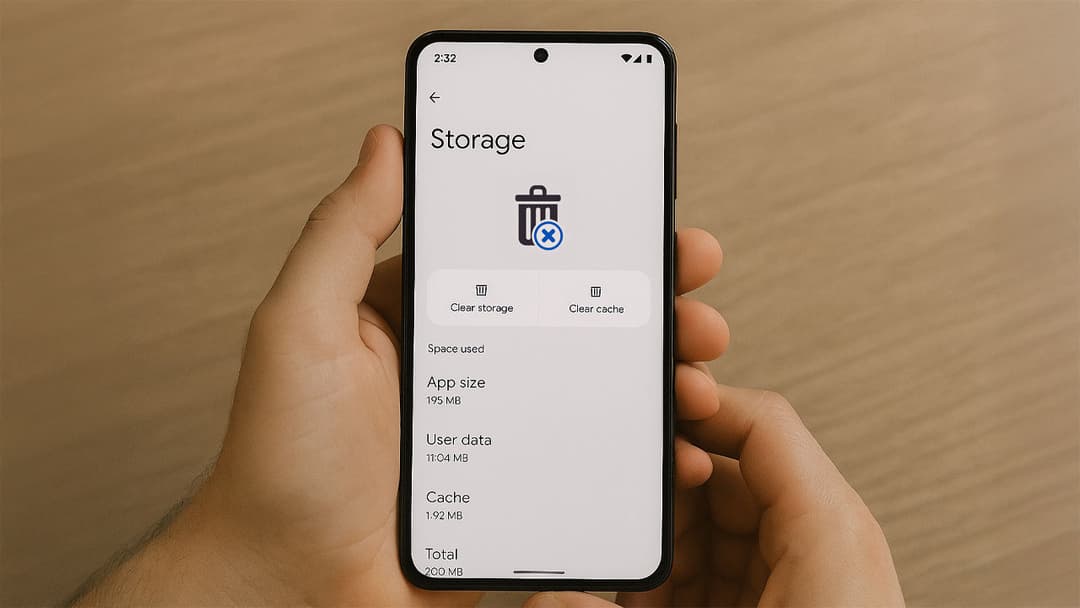
- Clear app cache – In Settings ➜ Apps ➜ select an app ➜ Storage and cache ➜ Clear cache.
What to do if your phone is still full
- Uninstall bloatware you never use.
- Move photos and videos to the cloud (Google Drive, Microsoft OneDrive, or Amazon Photos).
- Add a microSD card (if your phone supports it) for expandable storage.
- Factory reset as a last resort (after backing up important data).