Text messages from one person disappeared on iPhone
Has a single conversation suddenly gone blank while every other chat still looks fine? When text messages from one person disappear on your iPhone it usually traces back to a very specific setting, sync issue, or—since the iOS 18 rollout—a well-known software bug. Below you’ll find the most common causes, quick checks, and a detailed recovery playbook so you can get that missing thread back (or at least know why it’s gone for good).
Why messages from one person disappear
Quick checks before you panic
- Search the conversation name in the Messages list. A search hit proves the texts still exist; tap to reopen them.
- Tap “Filters” at the top left of Messages and switch to All Messages.
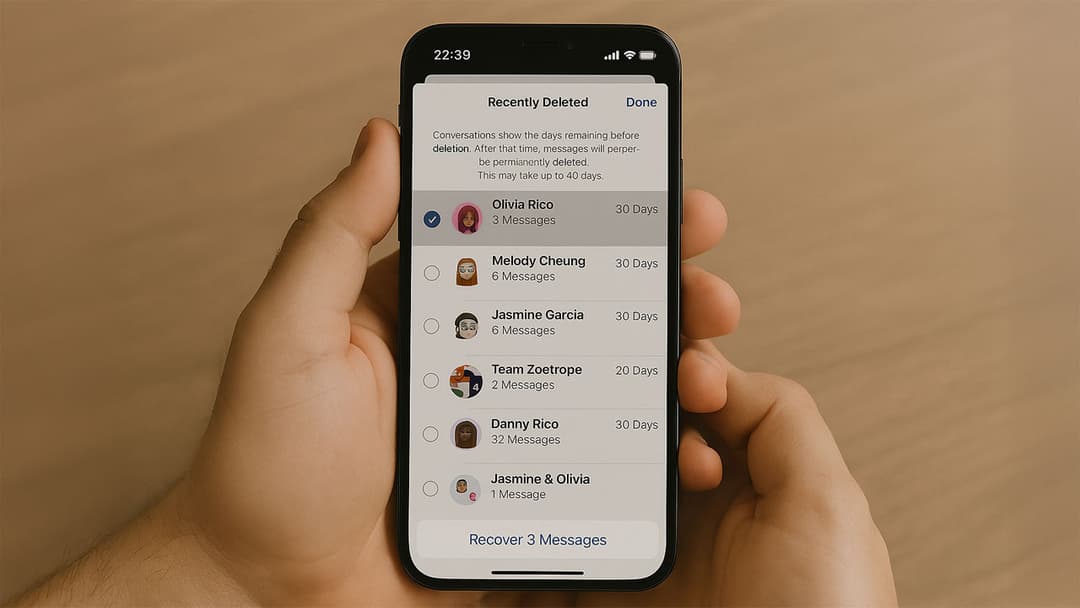
- Open the Recently Deleted folder and tap Recover if the thread appears there (works up to 30 days after deletion).
- Verify the contact isn’t blocked: Settings > Messages > Blocked Contacts.
- Restart your iPhone—a simple reboot often repopulates a stuck thread.
If the chat is still missing, move on to the full recovery guide below.
Step-by-step guide to recover the missing conversation
1. Disable filters and re-index Messages
- Open Settings > Messages.
- Turn Filter Unknown Senders off temporarily.
- Force-quit Messages, reopen it, and pull down to refresh.
Why: The filter can mis-tag a known number after you edit or merge contacts.
2. Recover from Recently Deleted
- In Messages, tap Edit > Show Recently Deleted.
- Select the contact, tap Recover, then Done.
Limitations: Works only within 30–40 days and requires iOS 16 or later.
3. Unblock—and then re-message—the contact
- Go to Settings > Messages > Blocked Contacts.
- Swipe left on the number, tap Unblock.
- Send a fresh SMS/iMessage; the previous thread often resurfaces immediately.
4. Re-sync Messages in iCloud
- Settings > [Your Name] > iCloud > Messages.
- Toggle Sync this iPhone off, wait 30 seconds, toggle back on.
- Keep the iPhone on Wi-Fi and charging until the sync finishes.
5. Update or roll forward iOS
- Settings > General > Software Update.
- Install the latest patch (Apple addressed the disappearing-thread bug in iOS 18.1.2).
6. Restore from backup (last resort)
- iCloud backup: Settings > General > Transfer or Reset iPhone > Erase All Content and Settings, then choose a backup from before the thread vanished.
- Finder/iTunes backup: Connect to a Mac/PC, pick Restore Backup.
Note: Any data created after the backup date is overwritten.
7. Try a third-party recovery tool
If you have no usable backup, apps such as PhoneRescue or Dr.Fone can scan local storage for orphaned SQLite chat records. Success isn’t guaranteed—but can be worth the attempt for critical evidence.
How to prevent messages disappearing again
Turn off auto-delete
Go to Settings > Messages > Keep Messages and pick Forever to stop iOS auto-cleaning older threads.
Keep iOS (and apps) updated
Apple quietly squashes messaging bugs in minor point releases—install them promptly.
Back up regularly
Enable iCloud Backup and create an encrypted Finder/iTunes backup at least monthly.
Watch storage levels
Low free space can derail message indexing. Aim for at least 5 GB free.